
Overview
This article will cover setting up and using TrackPod when it is a service being provided at an event.
Setup
Charge the TrackPod Scanners
On setup day for the event, be sure to put the TrackPod scanners on their chargers and have them on the chargers between uses.
Bring up the Event in the TrackPod Scanner
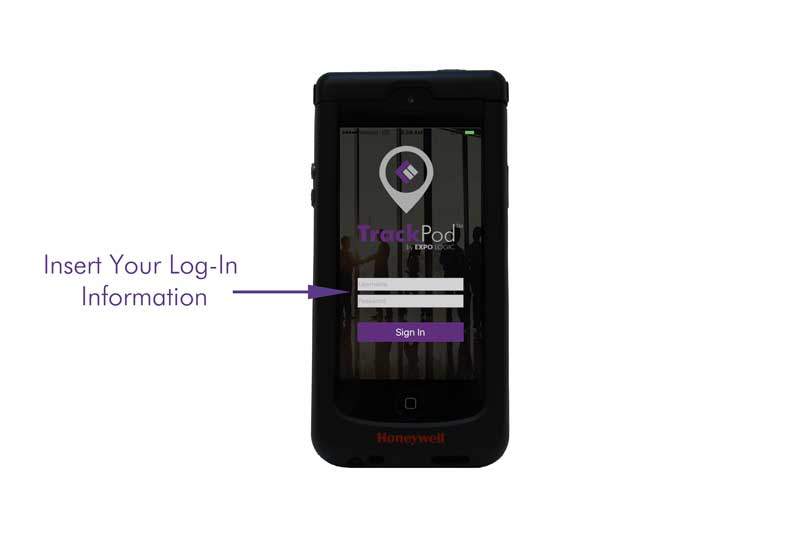
- Log into each scanner with the username and password for the event. It is usually found in the Notebooks tab of the event's project in Teamwork.
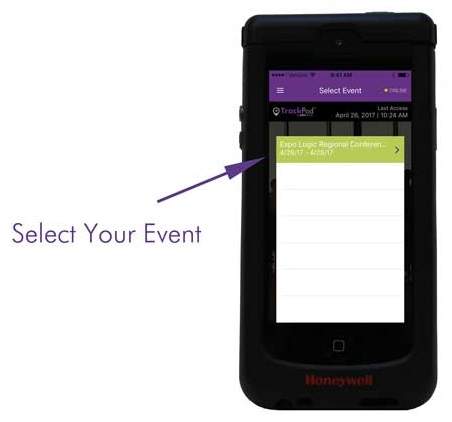
- Choose the event. Usually, there is only one event available, but some clients have several events to choose from.
Scanning Badges
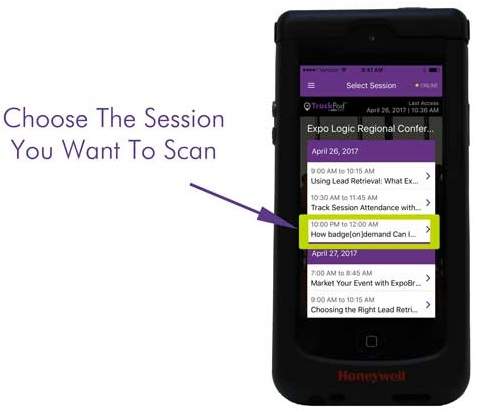
Choose the session
The agenda of the event is pre-loaded, so the user can touch the title of the session for which they will be scanning.
Scan Badges
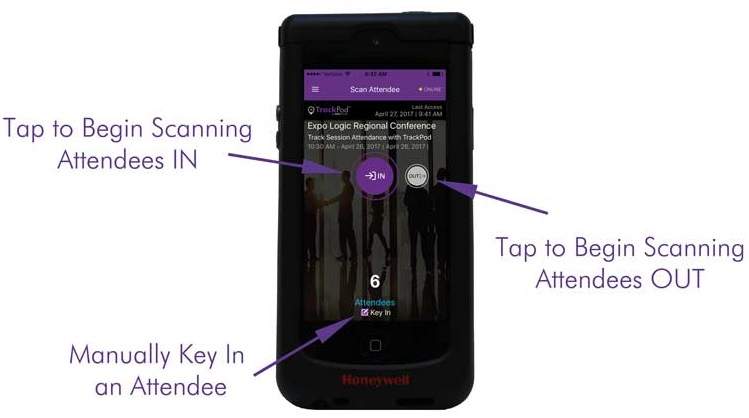
By pointing the scanner at the code on the badge, it will beep to indicate that the badge is scanned. The badge number can be manually entered if there is an issue with scanning.
This article may contain confidential information intended for Momentive Software employees only. The information in this article should not be discussed with individuals outside of Momentive Software. If a client or end-user has questions about the information covered in this article, please refer to a customer-facing article.
Comments
0 commentsPlease sign in to leave a comment.