
(Include basic review and key-in barcode information)
Review:
An attendee's badge will have a code printed on it, which is used by TrackPod to transmit an attendee's registration data. There are a variety of codes that TrackPod can read, however the most common are barcodes and QR codes.
In addition, there are many different reasons (or scenarios) where an attendee badge needs to be scanned. These can be as simple as tracking attendance or as complex as managing session access to a select few attendees.
Scanning Codes:
In advance of the event, attendee's registration information is converted into a unique code that is printed and displayed on their wearable badge. Then, when onsite, the attendee's code is scanned by the TrackPod app and information is exchanged.
There are a variety of codes that TrackPod supports:
1. Code 39
- A simple alphanumeric code that supports some special characters and is truncated with asterisks.
2. Code 128
- A more dense barcode type with seven unique alphanumeric sections.
3. PDF417
- A series of linear barcodes stacked atop one another to create a unique code.
4. QR Code
- A square-shaped code with three distinct sections to store data.
5. Aztec Code
- A square-shaped code with a distinct center section to store data.
Key-in Barcode:
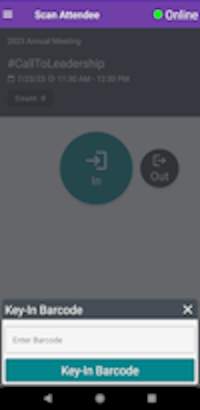
On occasion, an attendee's badge cannot be read by TrackPod's scanner.
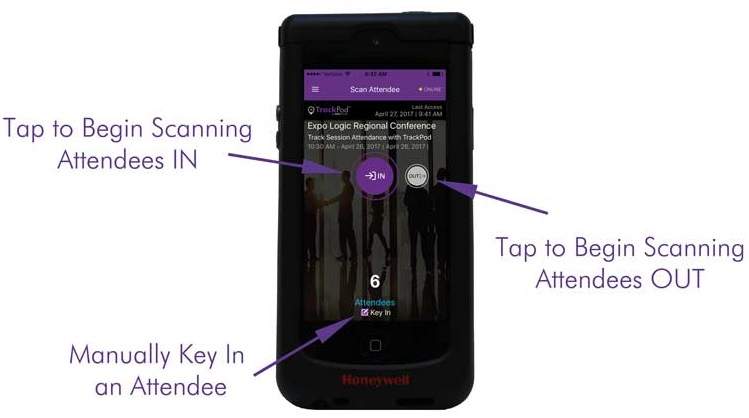
If the badge has a visible alphanumeric code, there is a button that allows a user to manually type in the barcode information.
Scanning in TrackPod App:
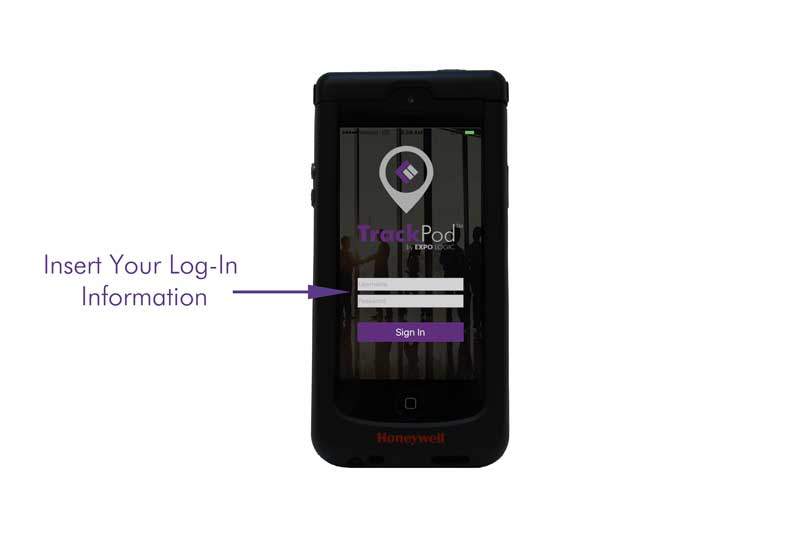
- Log into each scanner with the username and password for the event. It is usually found in the Notebooks tab of the event's project in Teamwork.
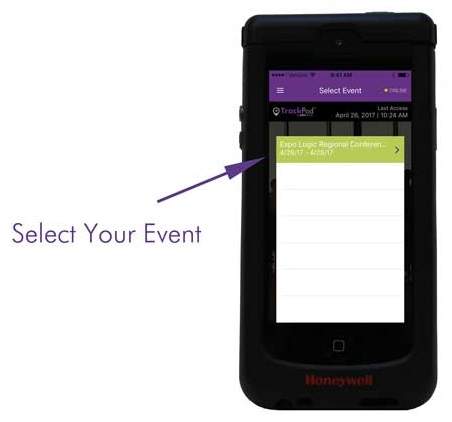
- Choose the event. Usually, there is only one event available, but some clients have several events to choose from.
Scanning Badges
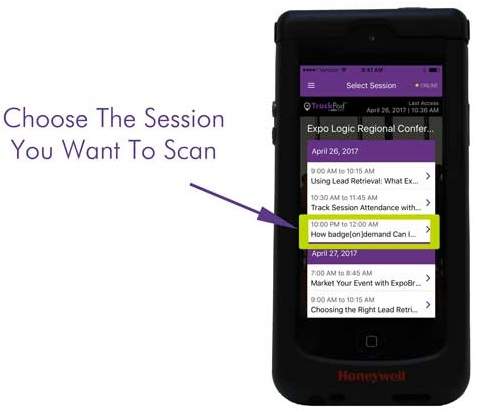
Choose the session
The agenda of the event is pre-loaded, so the user can touch the title of the session for which they will be scanning.
Scan Badges
By pointing the scanner at the code on the badge, it will beep to indicate that the badge is scanned. The badge number can be manually entered if there is an issue with scanning.
Comments
0 commentsPlease sign in to leave a comment.